
If you run a small business, learning how to create a Google Business Profile (GBP) is the single most valuable piece of free real estate you have on the internet. It’s the listing that pops up in the map pack when someone searches “coffee shop near me” or “dentist in Bellevue.” Without one, you simply don’t exist in local search and your competitors are happy to take the customers you’re missing.
The good news? Learning How to Create a Google Business Profile and setting it up is free, and it takes about 20 minutes if you have your information ready. This guide will walk you through every step, from creating a Google account to verifying your business and adding the finishing touches that help you stand out.
At Image Department, we’ve helped hundreds of small businesses build a strong online presence through professional branding, WordPress website design, and SEO content writing. A well-built GBP is the natural next step once your brand is in place.
Why Learning How to Create a Google Business Profile Matters
Google Business Profile (formerly Google My Business) is what feeds the Local Pack that three-result block with the map that appears above the regular search results. Studies consistently show that the businesses in that pack capture the vast majority of clicks for local searches. If you’re not there, you’re invisible.
A complete, optimized profile also helps you:
- Appear on Google Maps when potential customers are nearby
- Collect and display customer reviews that build trust
- Share photos, posts, and offers directly in search results
- Let customers call, message, get directions, or book appointments with a single tap
Step-by-Step: How to Create a Google Business Profile
1. Create a Google Account for Your Business
Before you can create a local listing, you need a Google Account dedicated to the business. If you already use Gmail for the business, you can use that but we recommend a separate account so personal email and business listings stay cleanly divided.
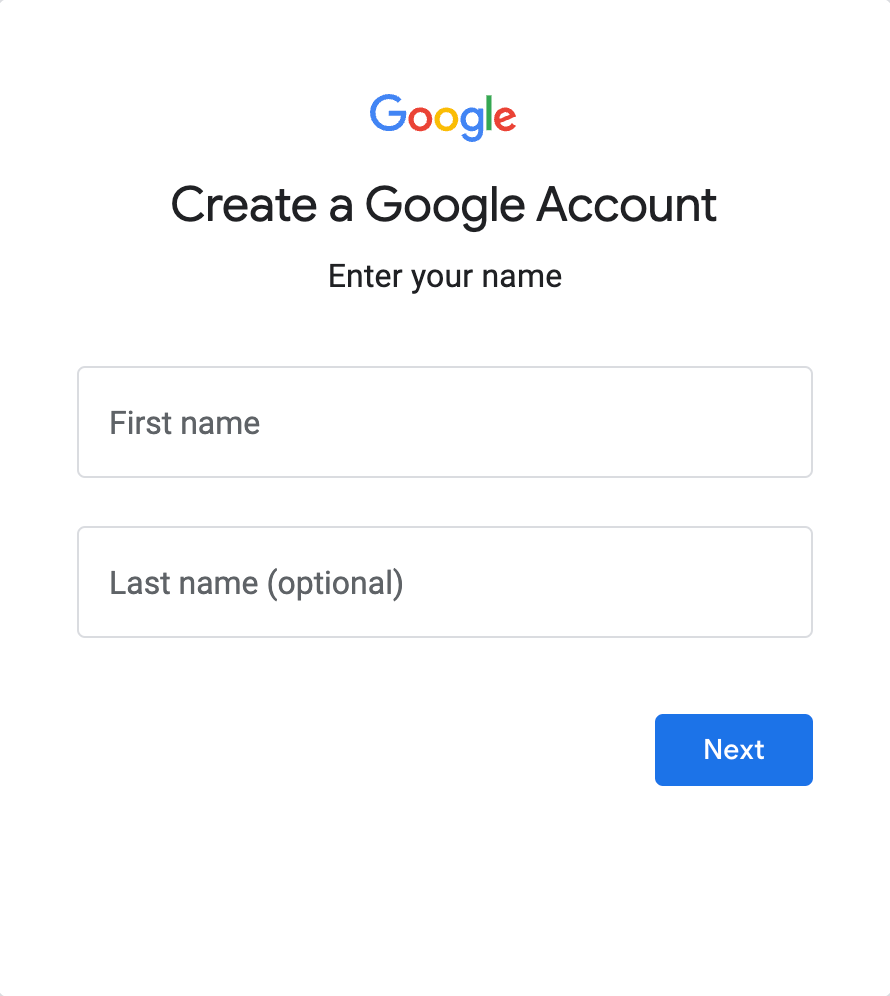
Head to accounts.google.com and click Create an account. You’ll be prompted to set up a Gmail address along the way. Use the business name (or a close variation) so the account is easy to identify later.
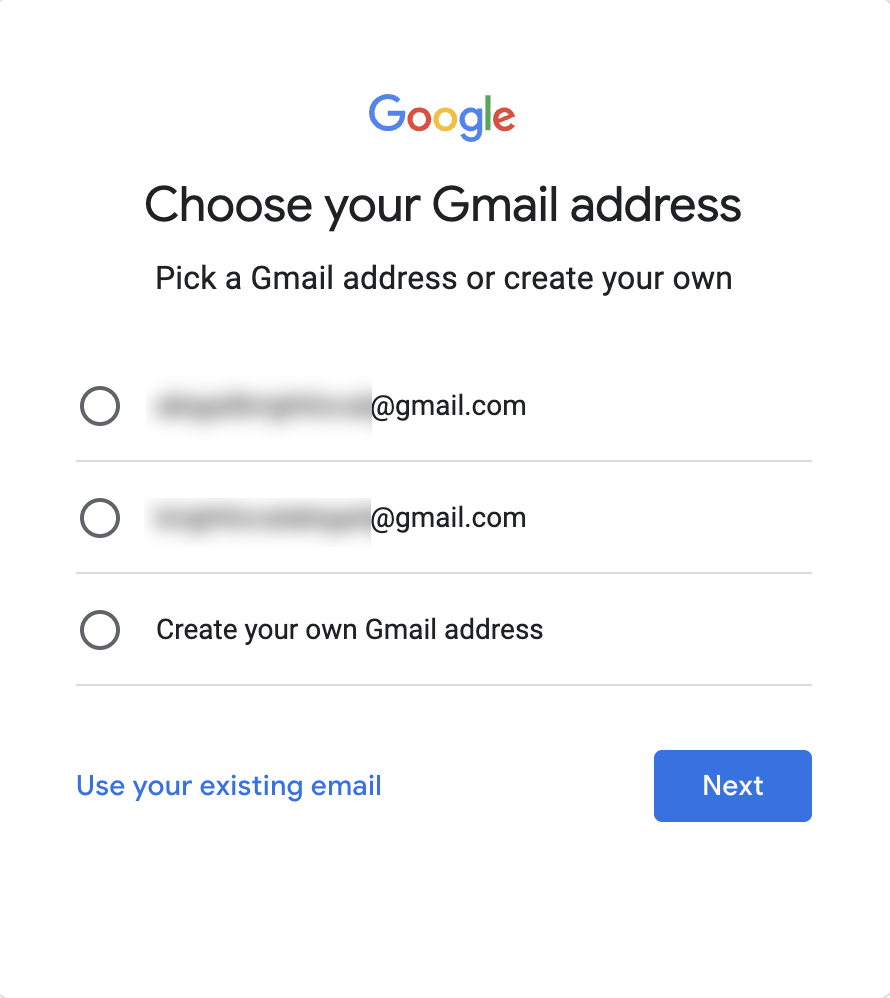
Along the way, Google will ask you to pick a Gmail address. You can either create a new one or link an email you already use we’d lean toward a fresh, business-only Gmail so your personal and business correspondence stay separate.
Work through the rest of the prompts until your account is live. One tip: in a Google Account built specifically for a business, you can switch on business personalization turning it on now smooths out every step that follows.
2. Visit the Google Business Profile Gateway
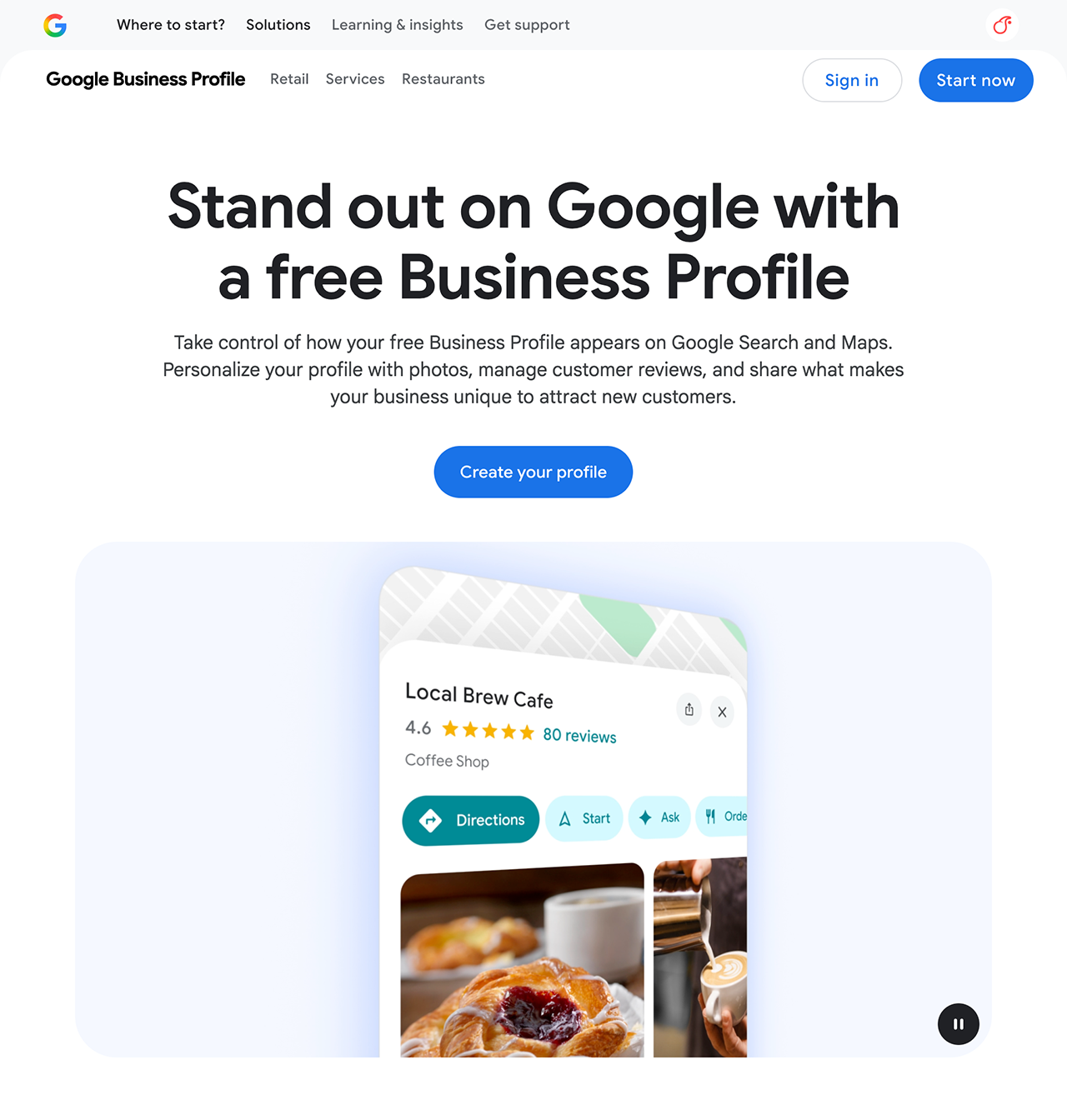
Once your account is ready, go to google.com/business and click Manage now. This is where the setup wizard begins.
3. Search for Your Business
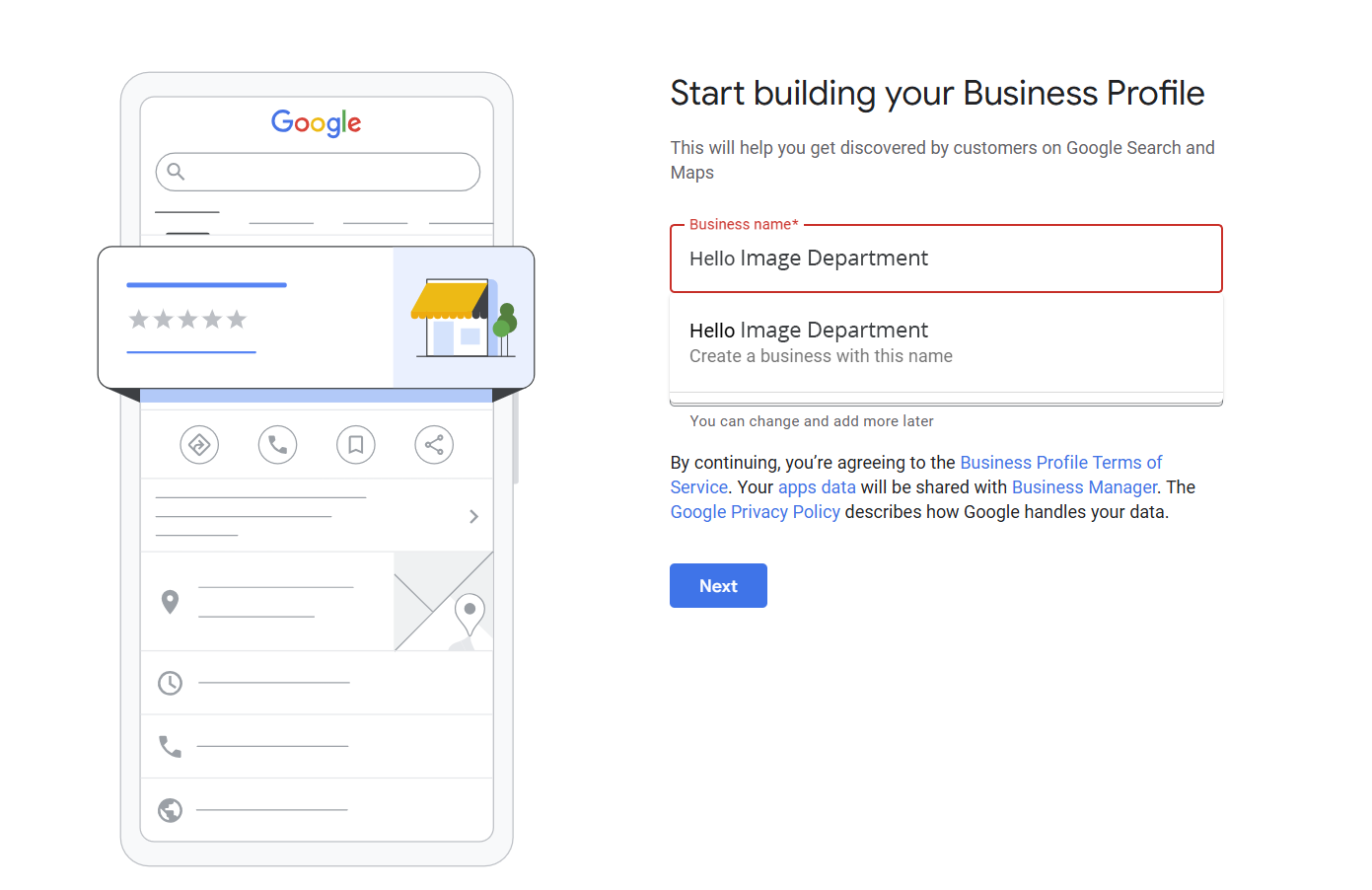
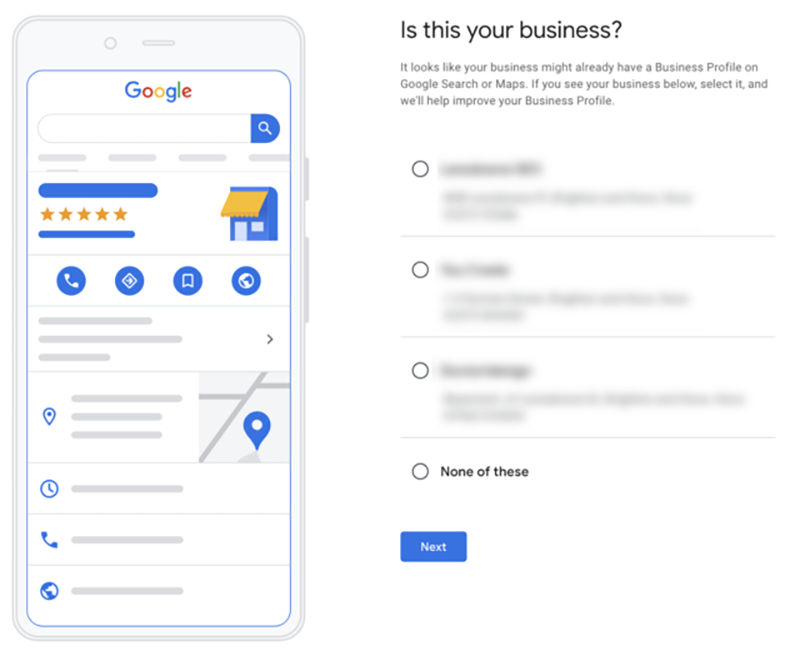
Start typing your business name. If a profile already exists which often happens because Google auto-generates listings from public data it will appear in the dropdown. If it doesn’t, click Add your business to Google.
Important: Use your exact, official business name. Don’t add keywords, locations, or taglines doing so violates Google’s guidelines and can get your profile suspended. “Joe’s Plumbing” is fine. “Joe’s Plumbing Best Plumber in Seattle” is not.
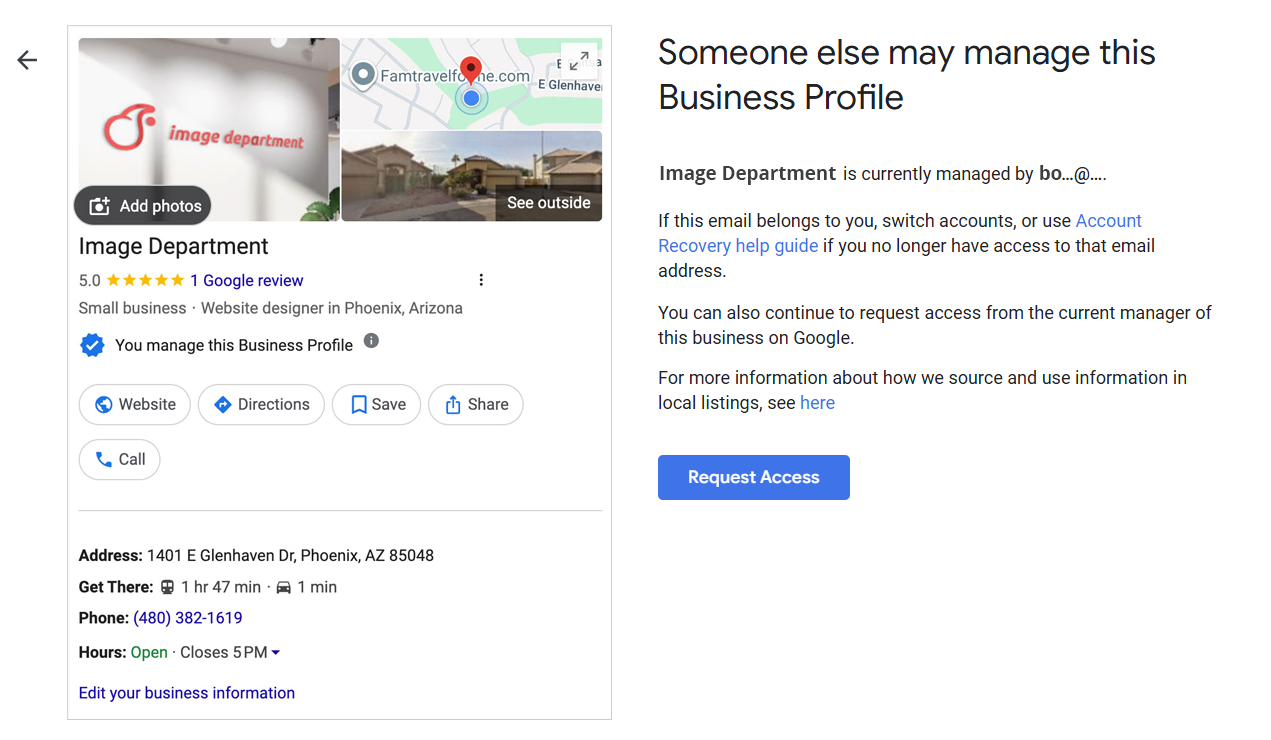
If someone else has already claimed the profile (a previous owner, a former employee, or an automated listing), click Request Access and follow the prompts. Google will email the current owner and give you a path to reclaim it.
4. Choose Your Business Type
Google will ask how you serve customers. You have three options:
- Local store customers come to your physical location (a coffee shop, salon, or retail store).
- Service business you travel to customers (plumbers, landscapers, mobile mechanics). These are called Service Area Businesses (SABs).
- Online retail you only sell online, with no in-person interaction.
You can choose more than one if, say, you have a storefront and an online shop. Be honest here. Claiming a physical address you don’t actually operate from is one of the fastest ways to get your profile suspended.
5. Add a Primary Business Category
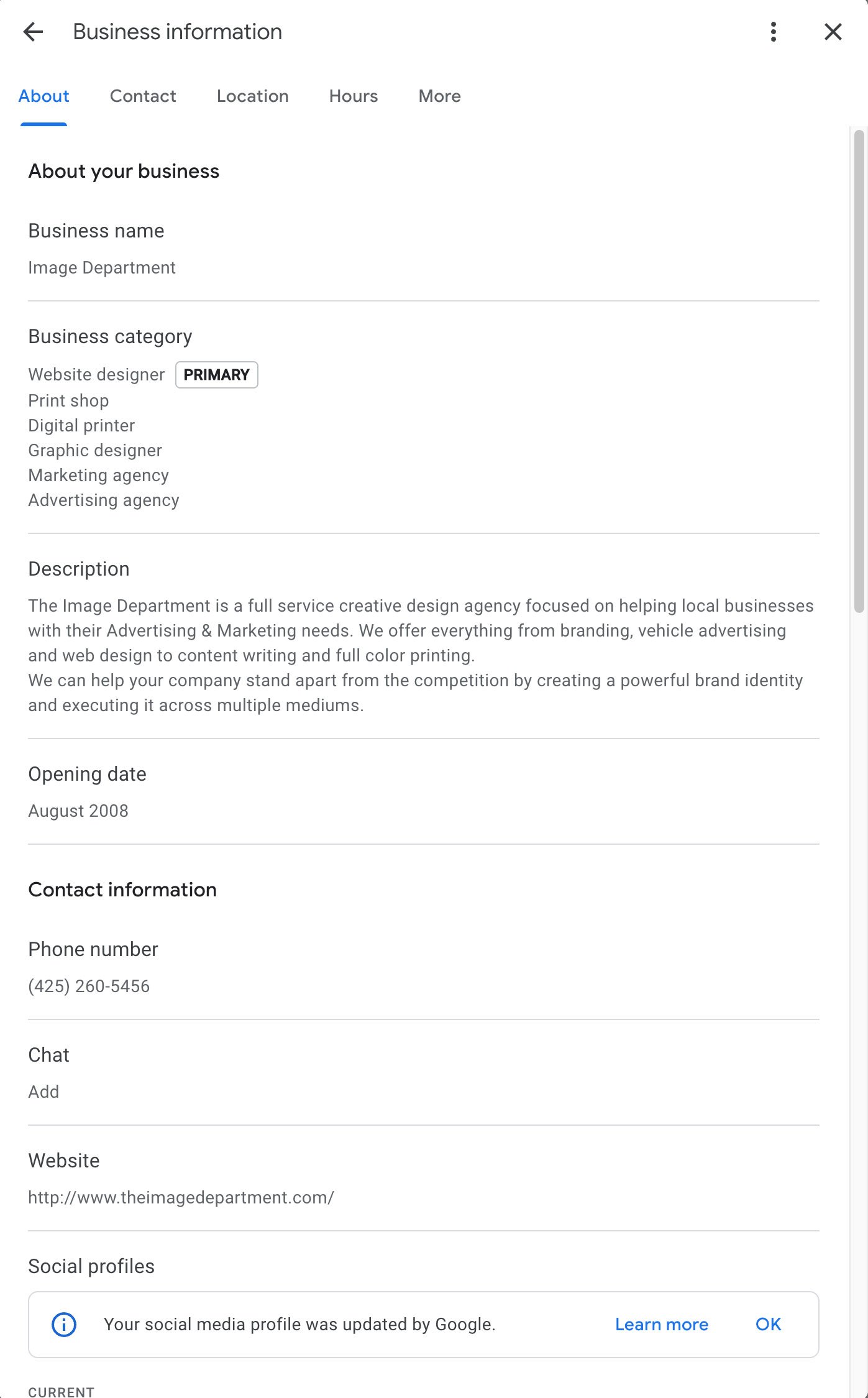
Pick the category that most closely describes what your business does. You can edit this later and add secondary categories, so don’t agonize over it but try to be specific. “Italian Restaurant” is better than just “Restaurant.” Your primary category has a real impact on which searches you appear in, so this is one of the most important fields on your entire profile.
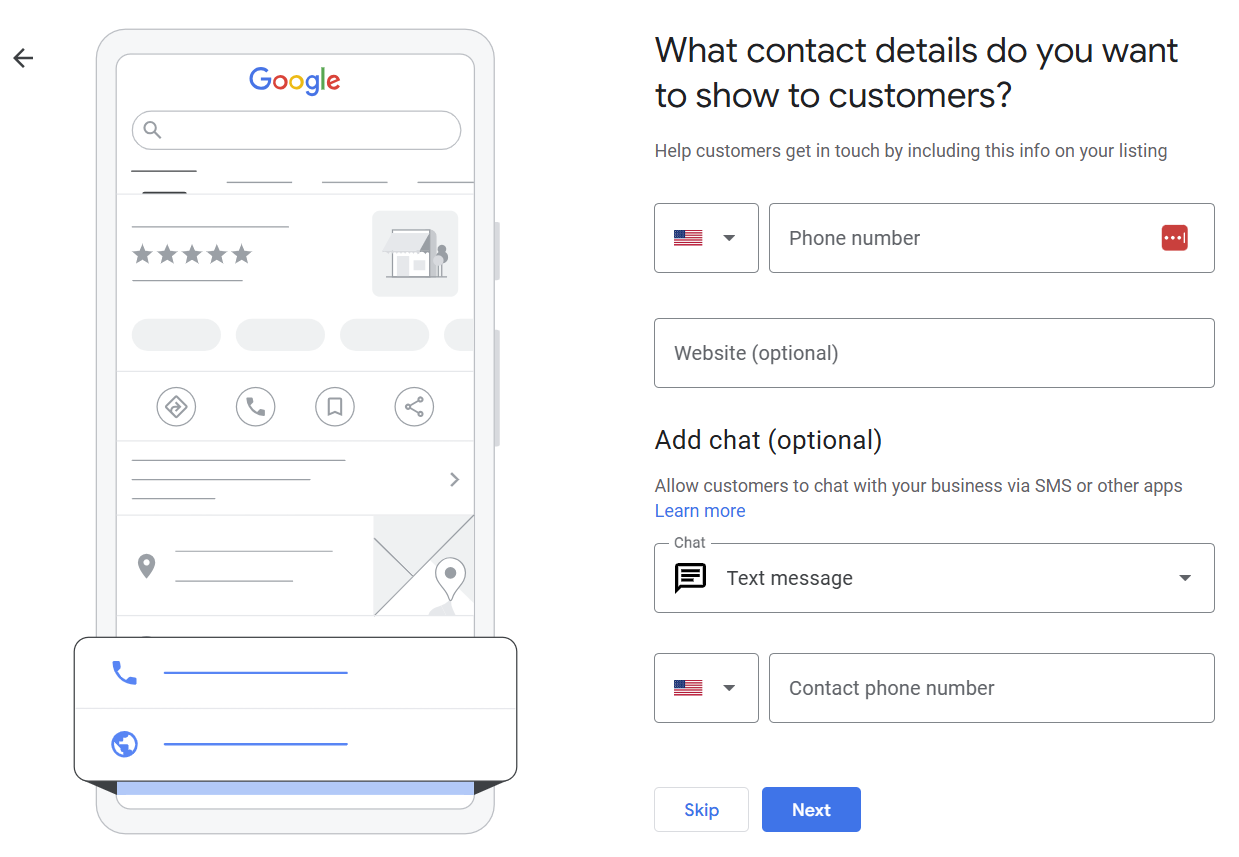
6. Add Your Contact Details
Enter your business phone number and website URL. The phone number should be the one you actually answer for business calls Google may use it for verification later.
Don’t have a website yet? This is the moment to fix that. A professional site signals legitimacy to both Google and customers. Image Department builds custom WordPress websites designed specifically for small businesses, with SEO and lead generation built in from day one.
7. Enter Your Business Address
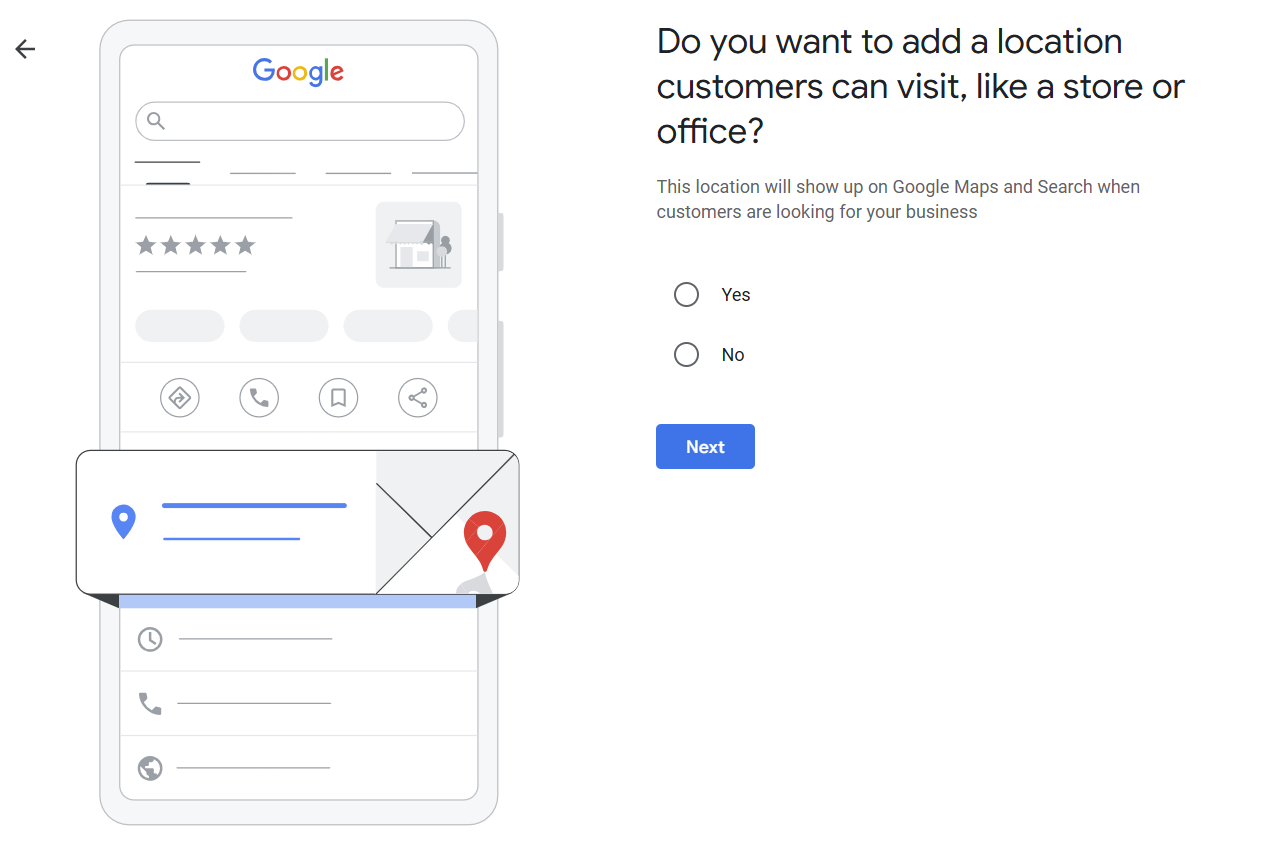
If customers visit you in person, you’ll need to give Google your street address.
If you have a physical location customers visit, type in the address. Google may ask you to drop a pin on a map to confirm the exact spot do this carefully, especially if you’re in a large building or shared space.
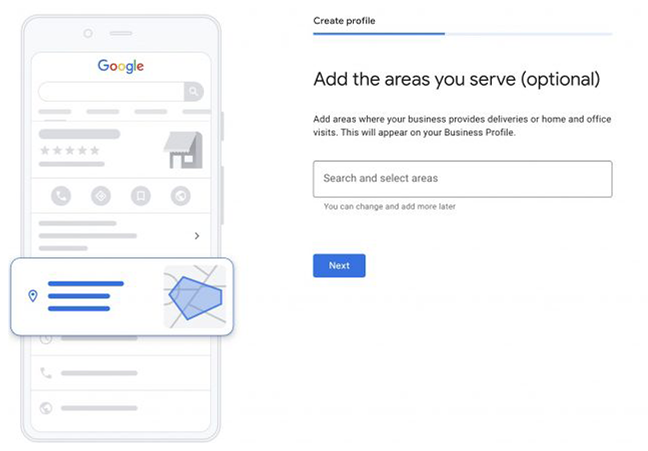
If you’re a Service Area Business, you’ll be prompted to list the cities, regions, or ZIP codes you serve instead. You can edit and expand this list any time.
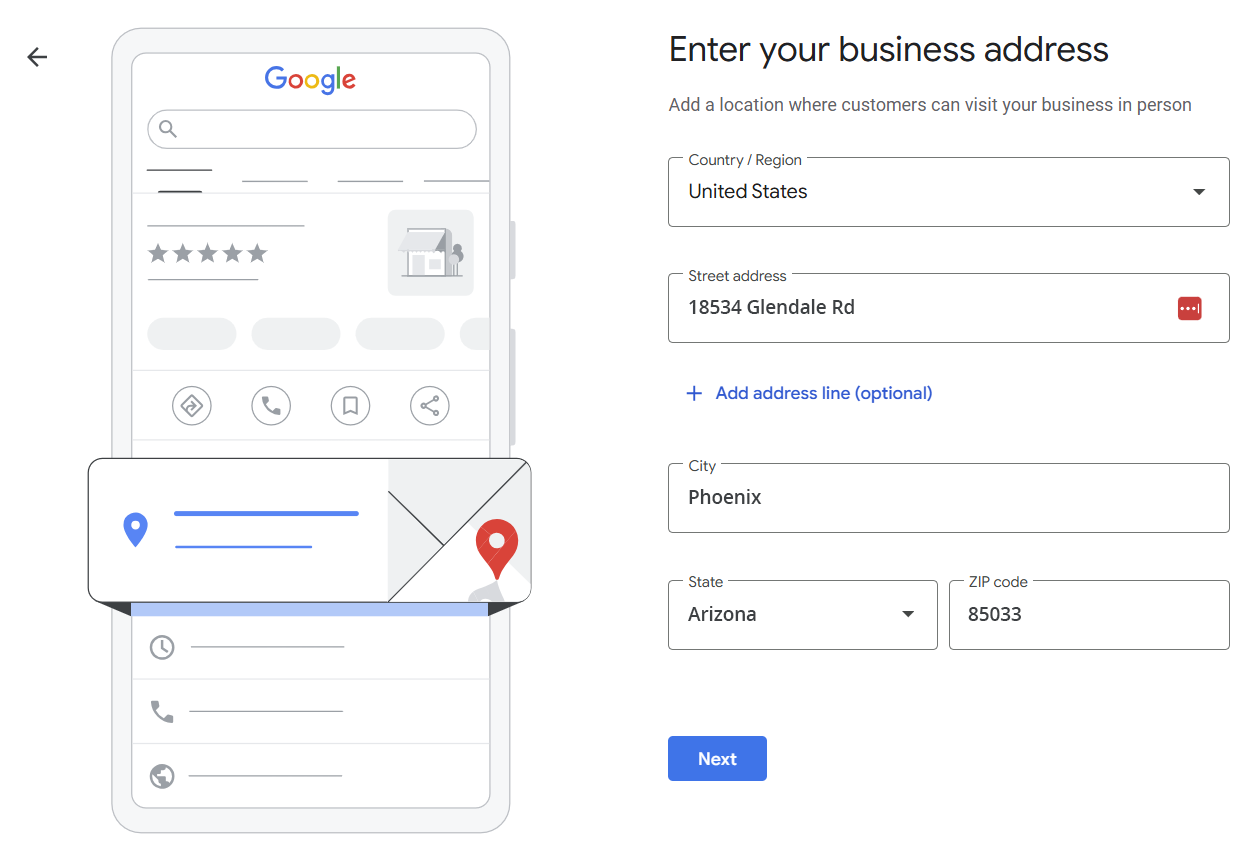
If customers visit you in person, you’ll need to give Google your street address.
Heads up: faking a physical location to chase better rankings is one of the fastest ways to torch your profile. Google routinely audits this, and a violation almost always ends in a suspension or full removal of the listing.
8. Verify Your Business
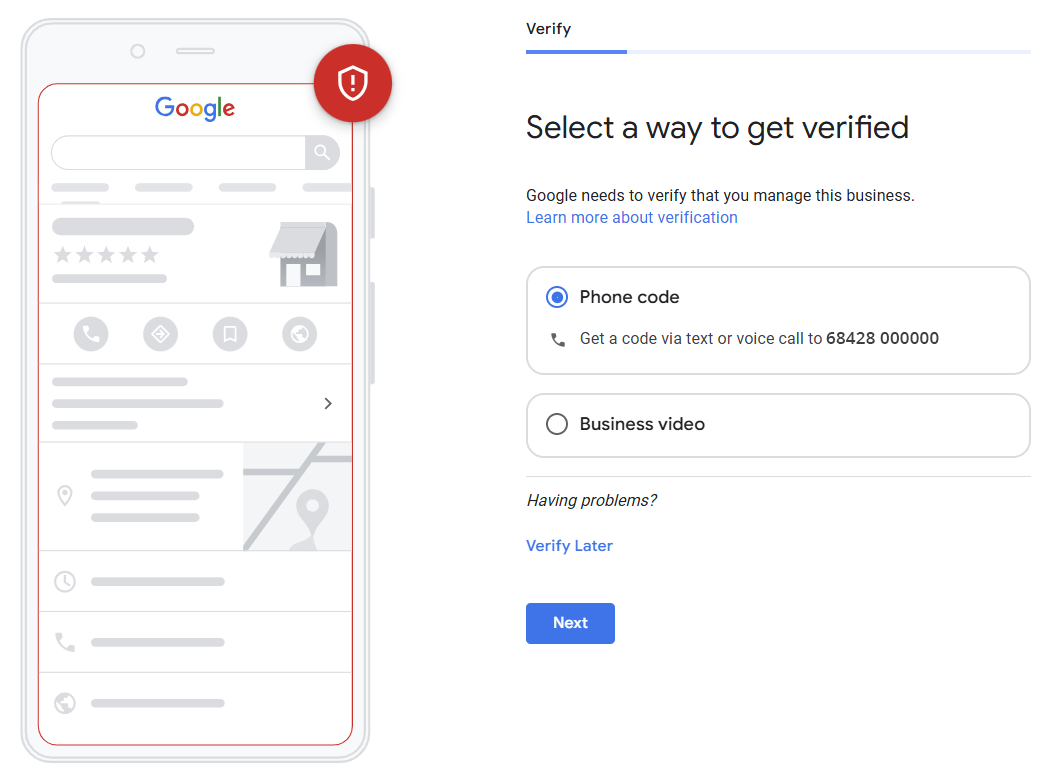
This is the step that takes your profile live. Google needs to confirm you actually operate where you say you do, and offers several verification methods:
- Video verification – the most common method today. You’ll record a short video showing your location, signage, equipment, or other proof of operation.
- Postcard verification – available to all businesses. Google mails a postcard with a code to your address; it usually arrives within five business days.
- Phone verification – an automated call delivers a code. Only available for some businesses.
- Email verification – a code is sent to the email on the account. Also limited.
You can keep editing your profile while verification is pending, but it won’t appear in search until the verification is complete.
9. Add Photos
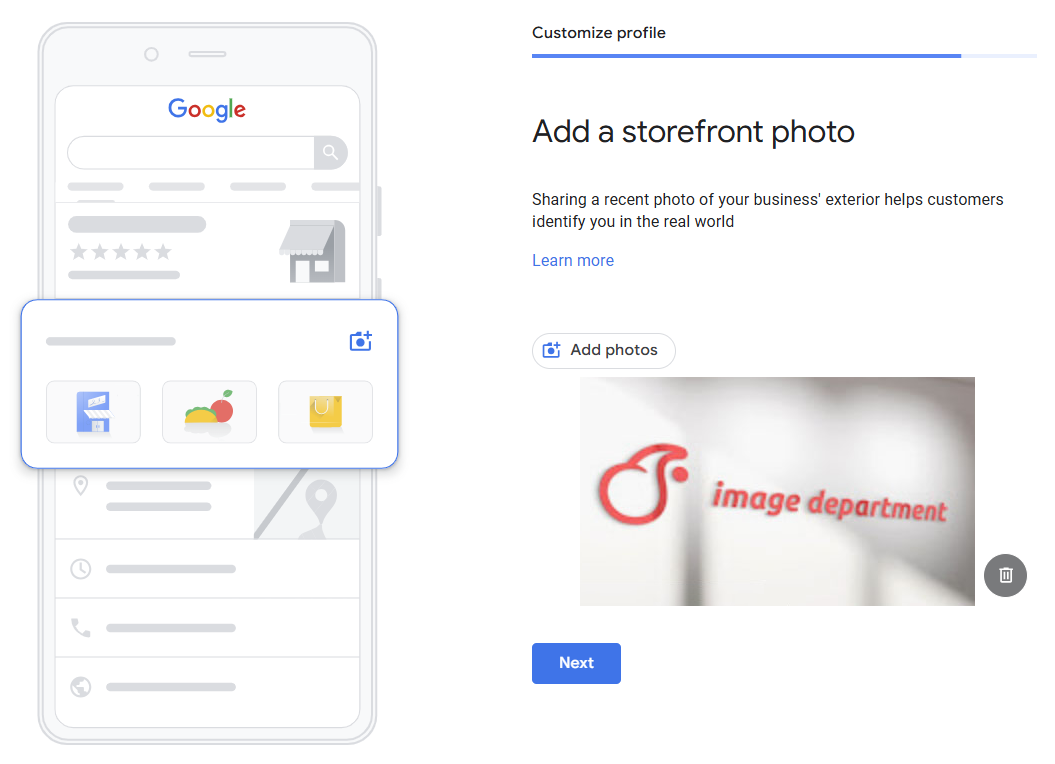
Profiles with photos get significantly more clicks, calls, and direction requests than those without. At minimum, upload:
- A clear, square logo
- A cover photo that represents your brand
- Photos of your storefront (interior and exterior)
- Photos of your products, team, or work in progress
If your photos look amateur, your business looks amateur. Professional product photography and brand imagery pay for themselves take a look at our branding portfolio for examples of how strong visuals can transform a small business’s perception.
10. Add Your Services
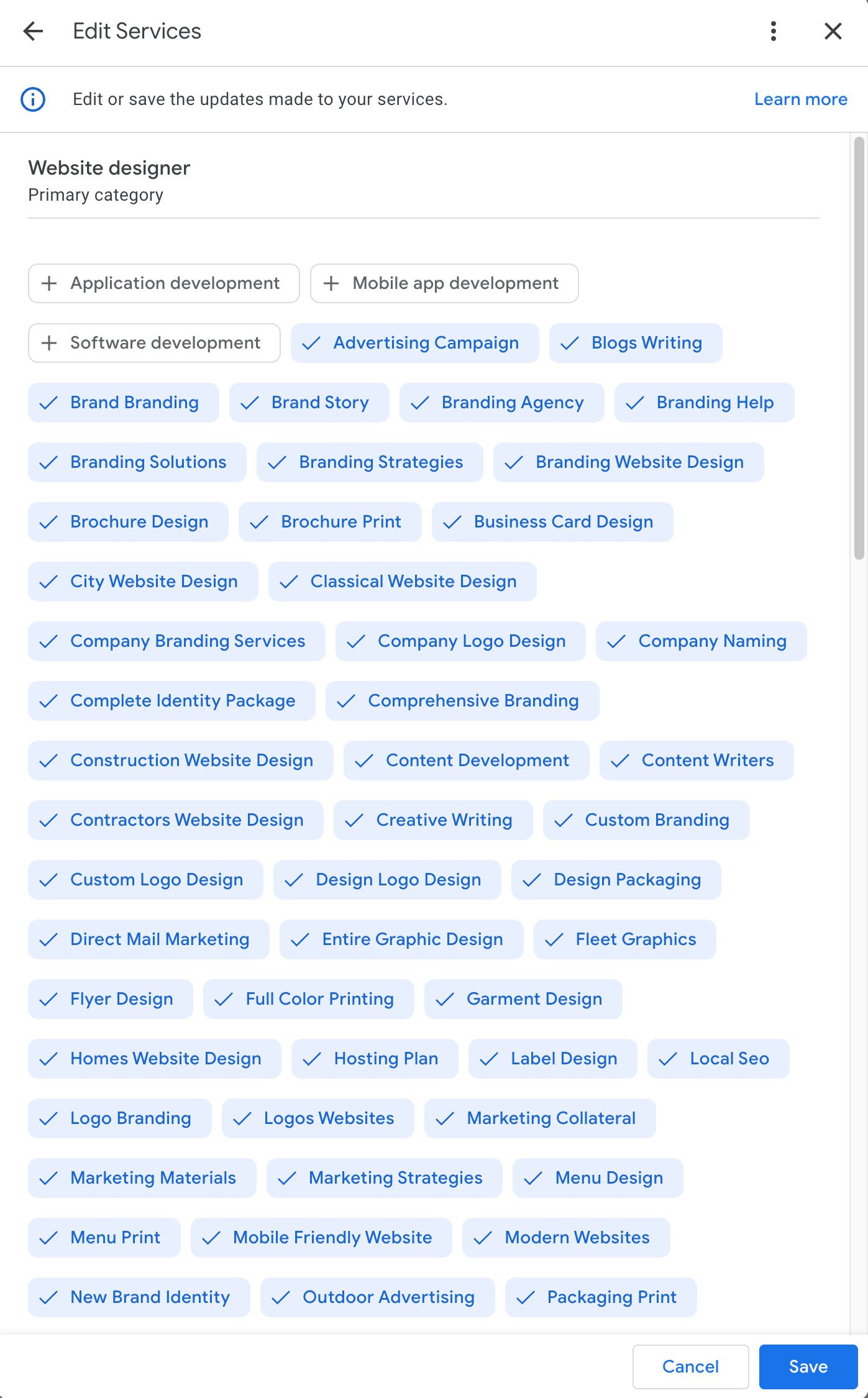
Google will let you pick from a pre-populated list of services based on your category, or add custom ones. Add as many as genuinely apply this content helps Google match your profile to the specific searches your customers run.
11. Set Up Google Ads (Optional)
Google will offer to walk you through setting up a Google Ads campaign at this point. You can absolutely skip it ads can come later, and you’ll want to see organic profile performance first.
12. Add Your Business Hours
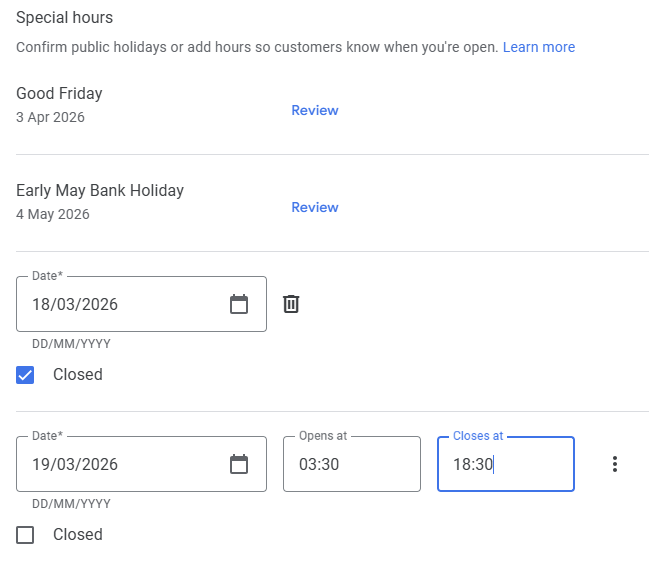
Be accurate. Nothing frustrates a customer like driving across town to find a “closed” sign on a door that Google said was open. Set your standard hours now, and remember to update them around holidays, vacations, or schedule changes.
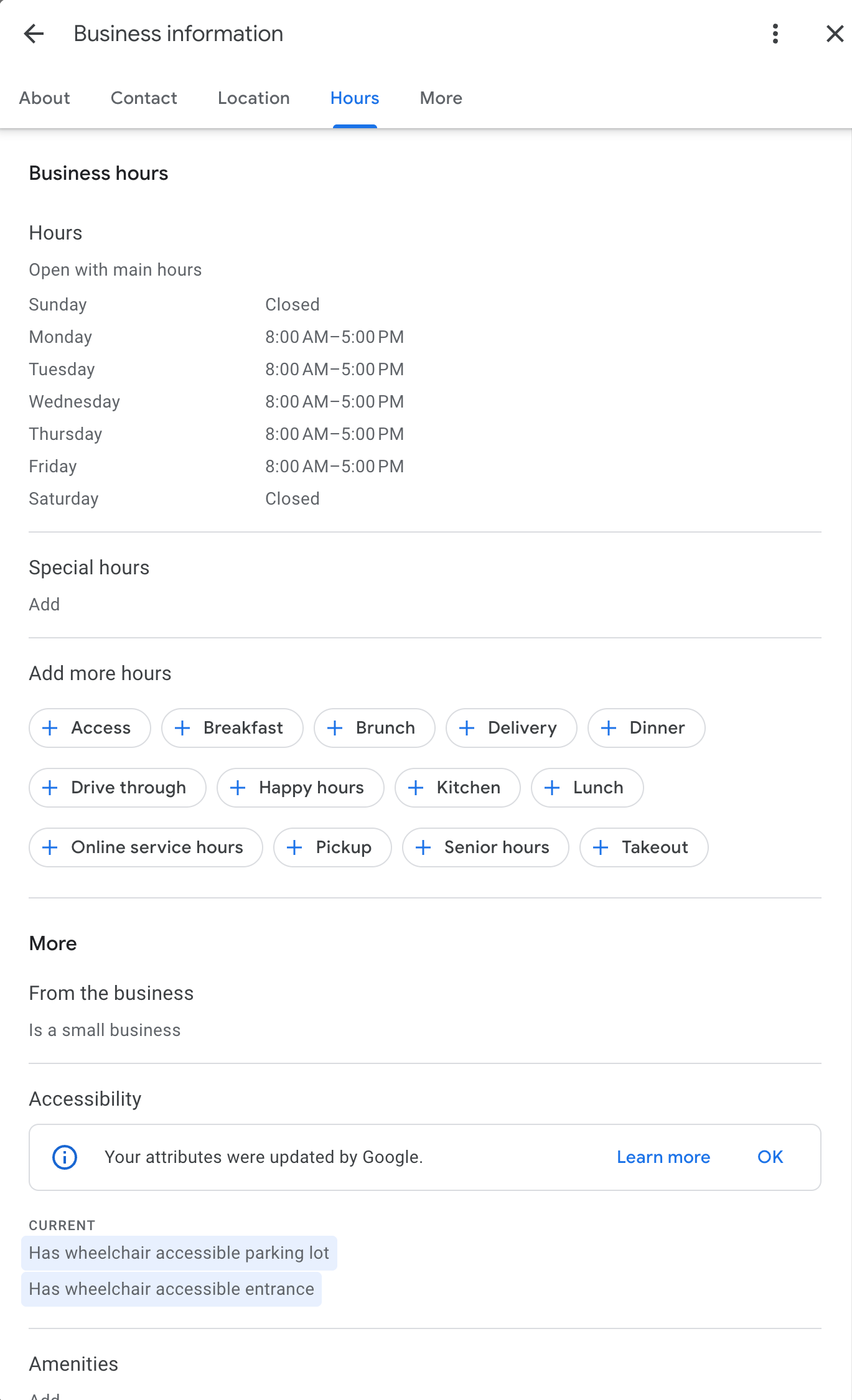
Accuracy here matters more than you’d think customers will hold a mismatched closure against you, and Google may down-rank a profile that gets flagged for wrong hours. For permanent shifts, just update your standard hours. For one-off changes like holidays, vacations, or unexpected closures, use the Special Hours field instead. Google often suggests local holidays for you, and you can add any custom date you need.
13. Enable Messaging (Optional)
You can let customers message you through your profile via WhatsApp or SMS. Only turn this on if you can reliably respond ignored messages hurt your reputation more than not offering the option in the first place.
14. Write Your Business Description
You get up to 750 characters to describe your business. This is your elevator pitch, so make it count. Talk about what you do, who you serve, and what makes you different. Avoid stuffing in keywords write for humans first. URLs are not allowed in this field.
Need help writing copy that ranks and converts? Our content writing service specializes in SEO-optimized descriptions, page copy, and blog content for small businesses.
15. Add Social Media Profile Links
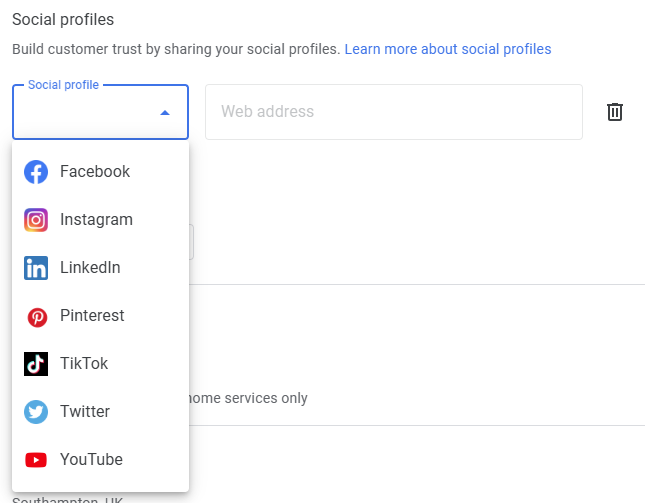
Once verified, you can add your social profiles so customers can connect with you on Facebook, Instagram, LinkedIn, or wherever you’re active. Go to Edit profile › Business information › Contact, then click Social profiles to add links.
How to Optimize Your Google Business Profile After Setup
Creating the profile is just the starting line. The businesses that win in local search are the ones that treat their GBP like a living, breathing marketing channel. Here’s what to do on an ongoing basis:
Need Help Building Your Online Presence?
A Google Business Profile is one piece of a much bigger picture. To really stand out, you need a cohesive brand logo, website, content, and print materials that all work together. At Image Department, we specialize in professional branding for small businesses, including logo design, WordPress websites, and print collateral. Every company deserves its own Image Department.
Frequently Asked Questions
Final Thoughts
Learning How to Create a Google Business Profile is one of the highest-impact, lowest-effort marketing moves a small business can make. The setup takes less than an hour, costs nothing, and can drive a steady stream of new customers for years. The work isn’t done once the profile is live the businesses that win are the ones that show up consistently with fresh photos, regular posts, and prompt responses to reviews.
If you’d rather hand the whole thing branding, website, GBP, and ongoing content to a team that does this every day, get in touch with Image Department. We’ll handle the heavy lifting so you can focus on running your business.
Want more practical guides like this one? Check out the Image Department Learn hub for tutorials on branding, WordPress, SEO, and small business marketing.
External resources: Google Business Profile Help Center · Google Business Profile


